Fallshaw Email Whitelist Guide
How to Ensure You Receive Fallshaw Emails
Instructions on how to 'whitelist' Fallshaw Group in your emails, to prevent emails going into your junk folder.
Contents
Microsoft Outlook (new version)
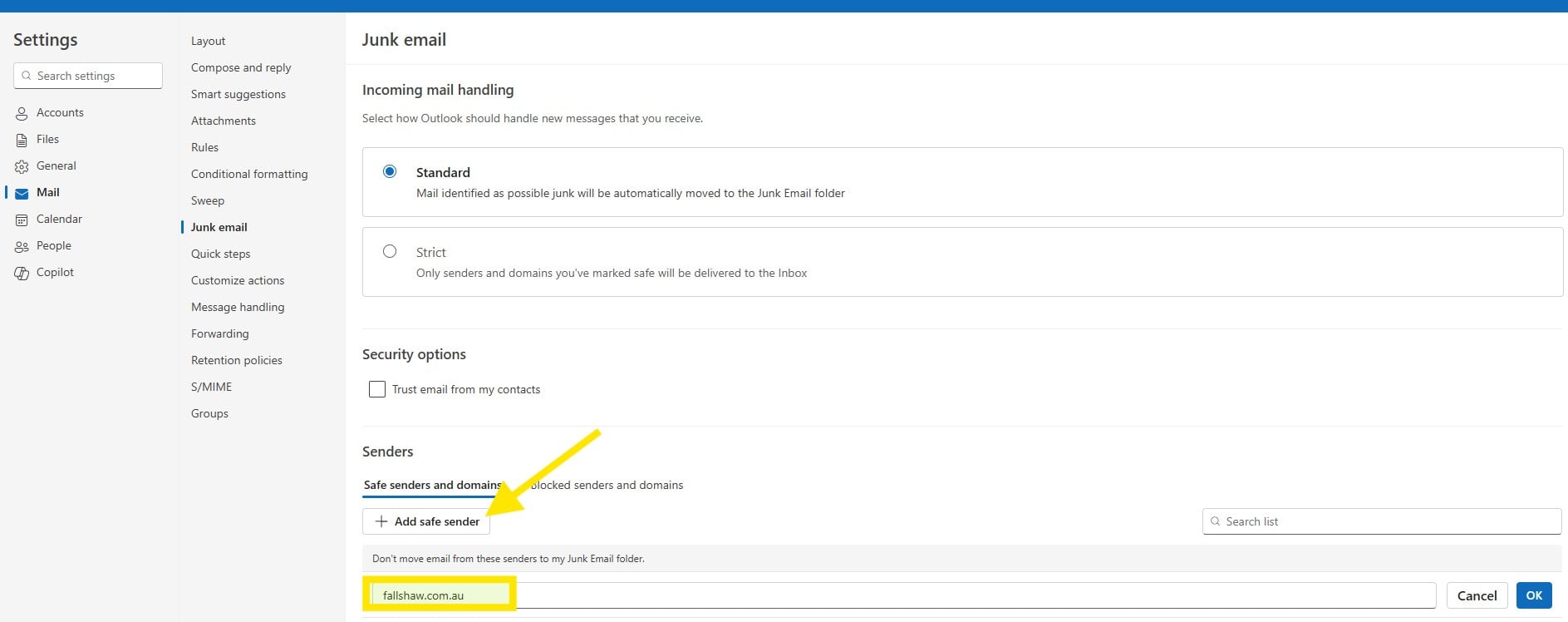
- Go to Settings (gear icon in the top right) → Mail → Junk email.
- Select Safe senders and domains.
- Click Add safe sender and enter
fallshaw.com.au. - Click OK, then Save.
Microsoft Outlook (older version)
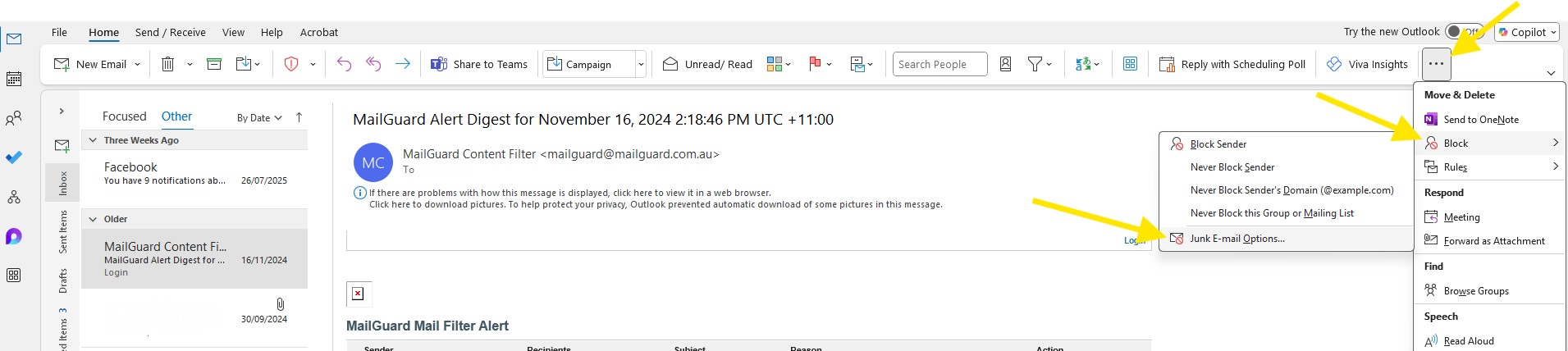
- Go to ...(three dot signs in the top right) → Block → Junk E-mail Options.
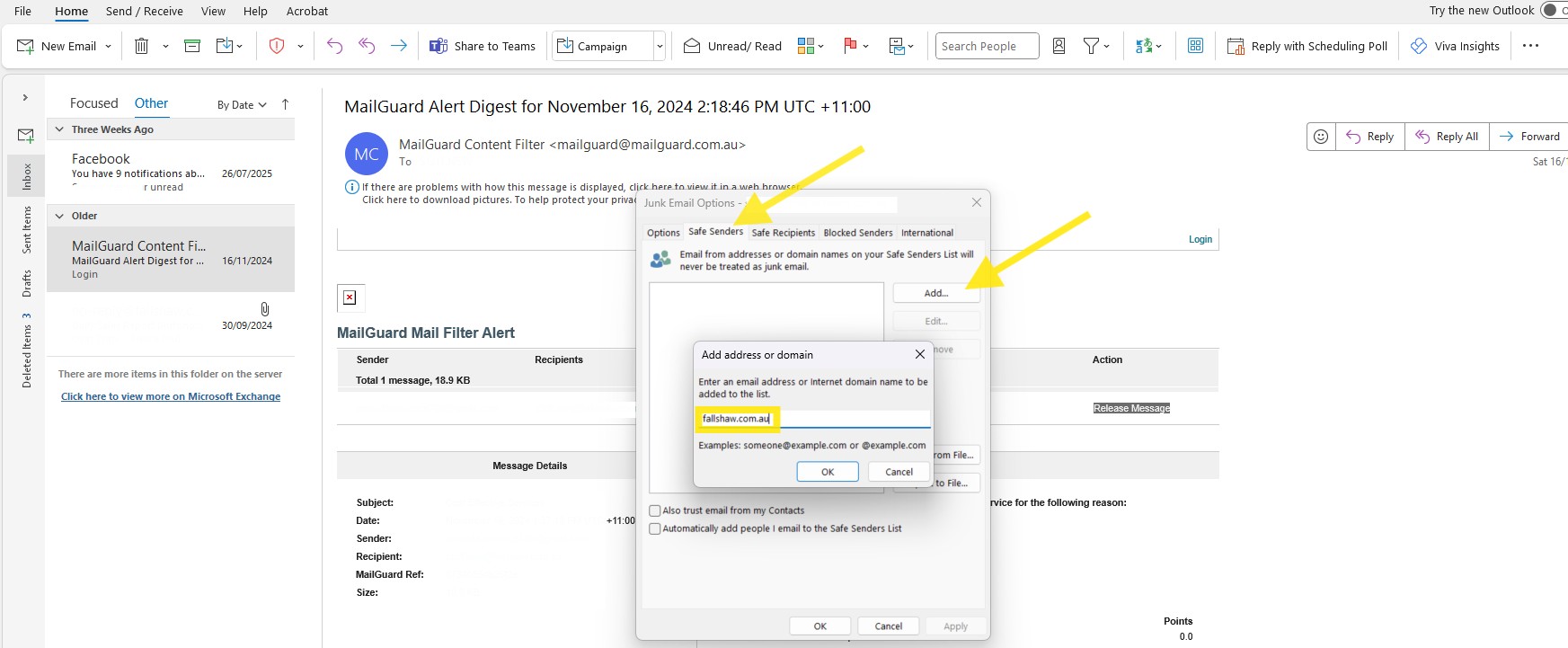
- Click on the Safe Senders tab.
- Click Add, enter
fallshaw.com.au, and click OK. - Click Apply or OK.
Step 1:
Step 2 and 3:
Gmail (Web)
- Click Settings (gear icon) → See all settings.
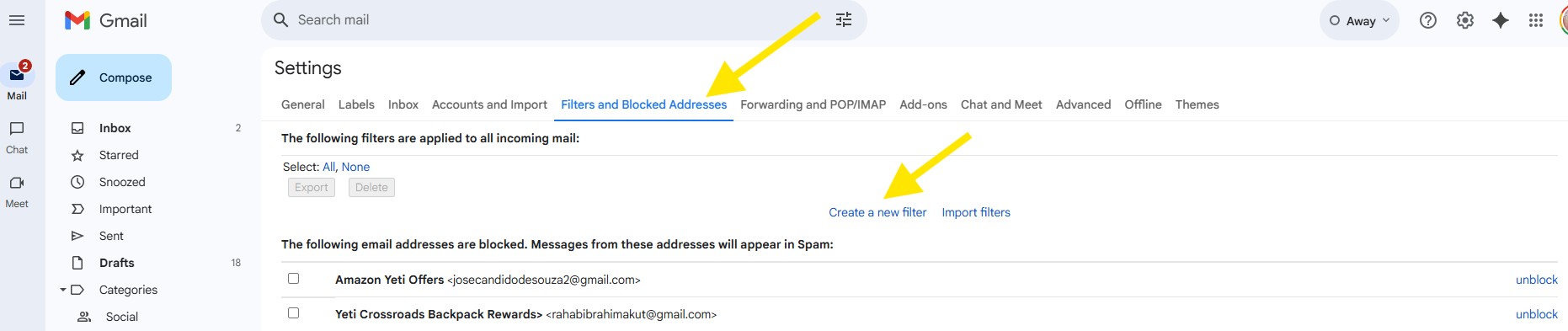
- Go to the Filters and Blocked Addresses tab.
- Click Create a new filter.
- In the From field, enter
@fallshaw.com.au. - Click Create filter.
- Select Never send it to Spam, then click Create filter.
Note: Gmail mobile app doesn’t allow creating filters. Instead, open a Fallshaw email in Spam and tap “Report not spam”.
Apple Mail (Mac)
- Open Mail → Preferences → Rules.
- Click Add Rule and name it “Whitelist – fallshaw.com.au”.
- Set the condition: From → Ends with →
@fallshaw.com.au. - Under Perform the following actions, select Move Message → Inbox.
- Click OK and ensure the rule is enabled.
Mozilla Thunderbird
- Mark as Not Junk: If an email from Fallshaw is in Junk, right-click it and choose Mark as Not Junk.
- Add to Address Book: Add
@fallshaw.com.auaddresses to your contacts—Thunderbird won’t treat them as junk. - Junk Settings: Go to Tools → Account Settings → Junk Settings and choose an address book to trust.
